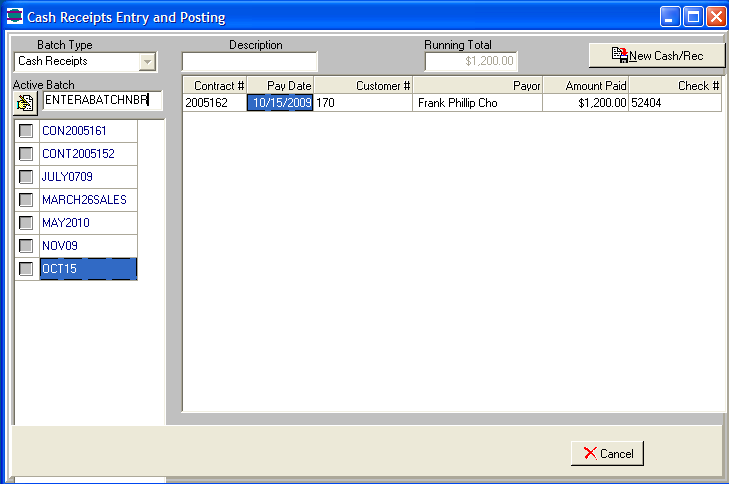
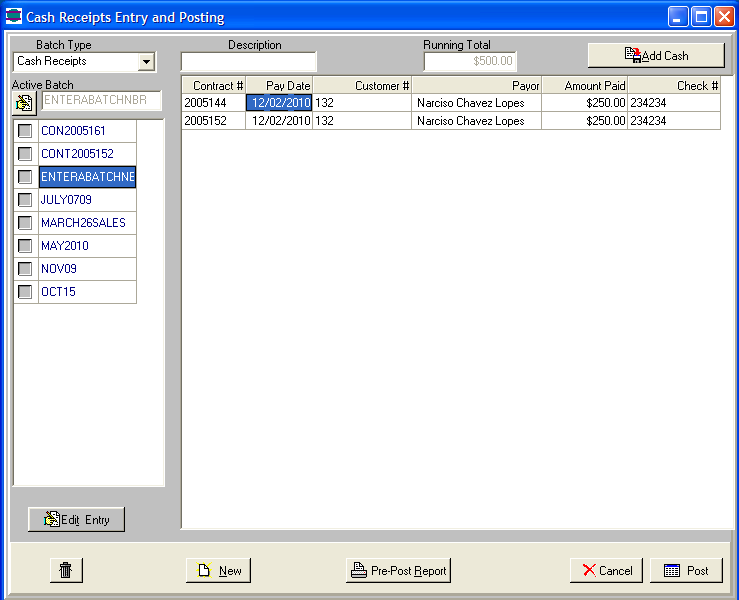
Cash receipts are entered in batches to make it easy for
multiple people to reconcile their own batches. They are also entered in
batches to create bank deposits and to reconcile that batch with the bank
deposit slip.
Down payments are not entered here unless you use
the "Calc Only DP" method.
Most down payments are entered when the sale is
entered.
When the sales batch is posted, all down payments
for that sales batch will get grouped together with the same batch
number as the sales batch number.
● Click the New Button to create a new batch
● Click the "New Cash/Rec" button at the top right
corner of the screen
You can look up the account by:
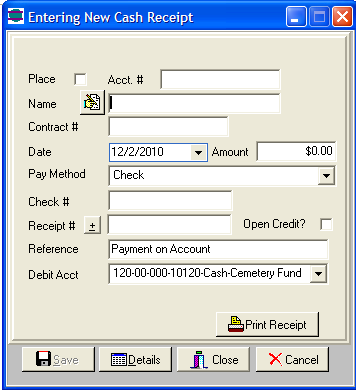
Sometimes the payment gets handed to the Accounting Office before
the Invoice is done. We encourage this so that Sales
Counselors do not carry the payments. When this happens, you
will get a message that "No open contracts were found. Do you
want to create an Open Credit?" Go ahead and post the payment
to that persons account. When the Contract is posted, you can apply
the payment at that time.
● Fill in all the applicable information for that
payment
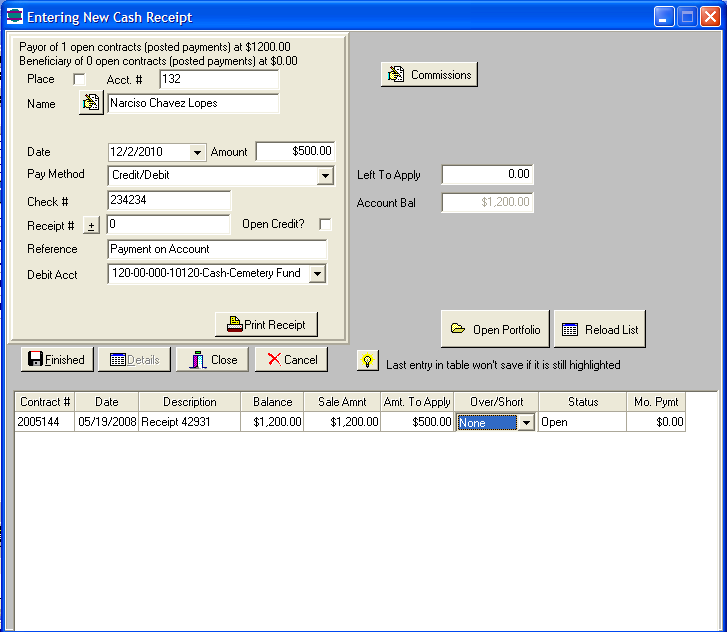
● Type the Applied amount into the "Amt to Apply" field
for that contract.
● Click to another field and then click Finished
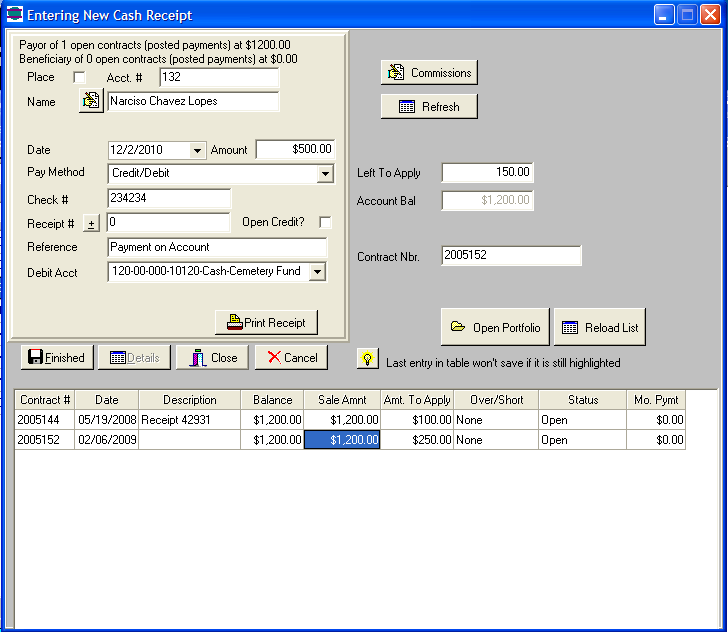
If someone sends a single payment for multiple
invoices, type the apply to for each invoice.
If you dont see one or more of the invoices on the
list, Right Mouse Click to get the following options:
-
Search for another Contract (Enter the
Contract number)
-
Search for another Person (look up a person by
their name)
-
Search by Account Number (look up a person by
their Account Number)
-
Search by Contract Status (You might need this
option if a payment was sent in for a cancelled contract)
Keep adding Invoices to pay, until you have all of
them.
If
you are in the middle of entering a Receipt and want to go look at
the persons account, click the Open Portfolio Button.
When all the payments are entered for your batch:
● Review the screen for Accuracy
● Click the Edit button, if there is an
error and the payment needs to be edited
● Run Pre-post Report
● If everything is fine, click the Post button
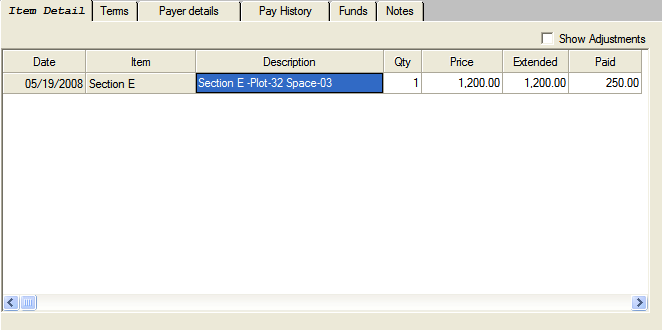
When the payment posts:
it updates the paid amount for each item
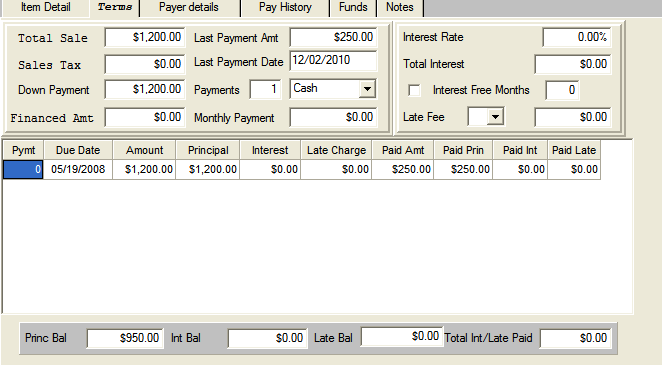
Each payment that is due gets updated
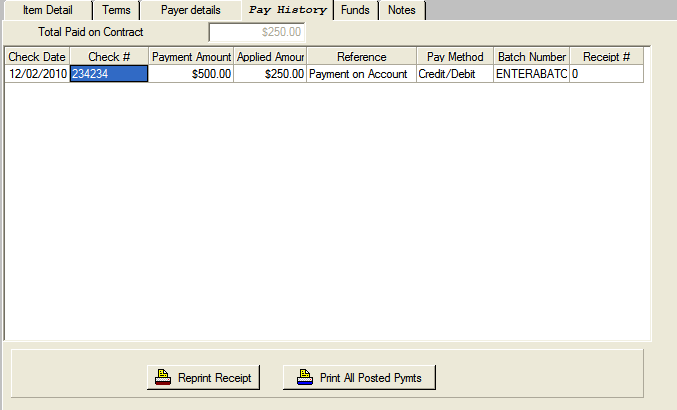
Payment History is logged to show all payments
that were posted to that Contract

 Made in USA