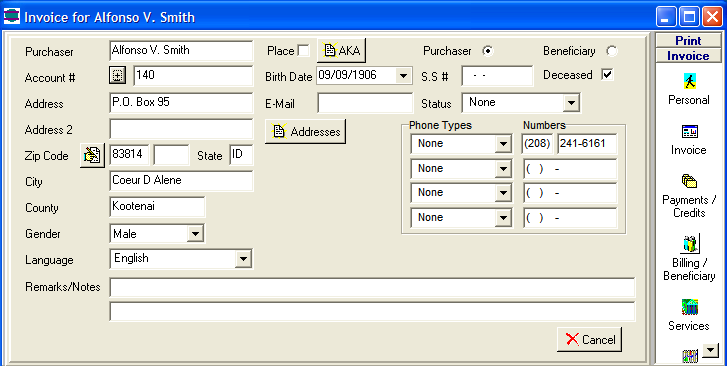
● Enter as much Information for the Purchaser and
Beneficiary as you have.
● Click the AKA Button to store unlimited "Also Known
As" names
● Click the "Addresses" Button to store unlimited
Addresses for this person
● Click the "Invoice" button on the right menu bar to
enter Sales information
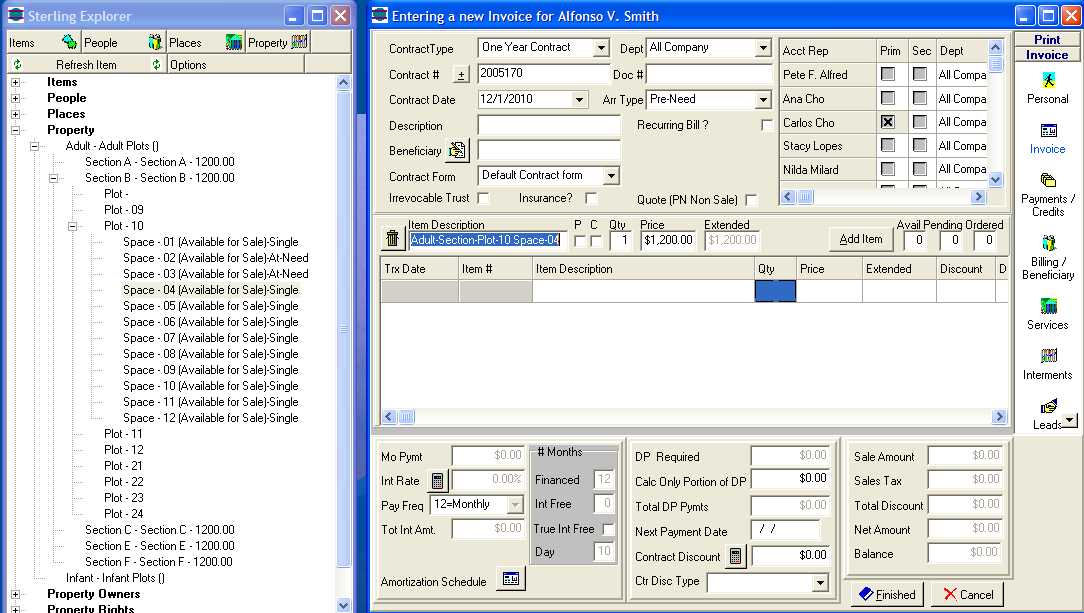
Invoice information is grouped with:
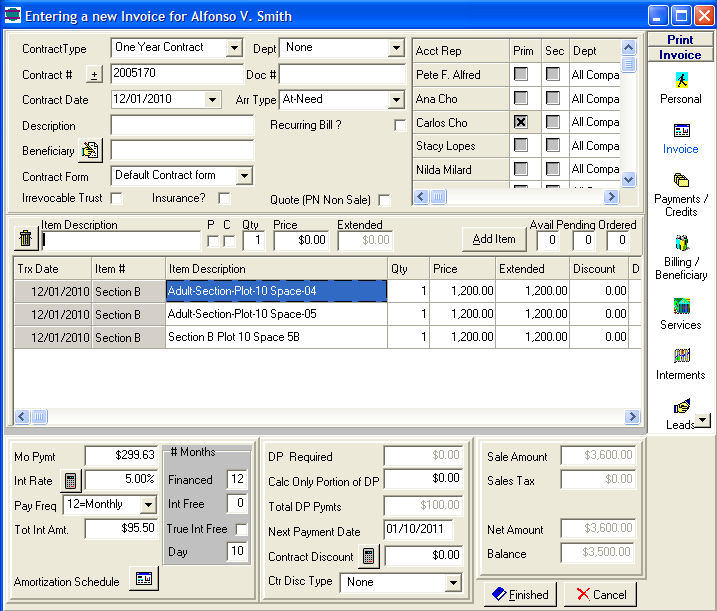
● Invoice rules at the top of the Screen
● Select a Contract Type, Department,
Arrangement Type and primary Sales Person
● Click the + button to automatically
generate the next Contract Number
● Check the Recurring Bill check box if
this is going to be a recurring invoice
● Check the Quote (PN Non Sale) to save
the selection of products and services. This will set the invoice aside to
review later.
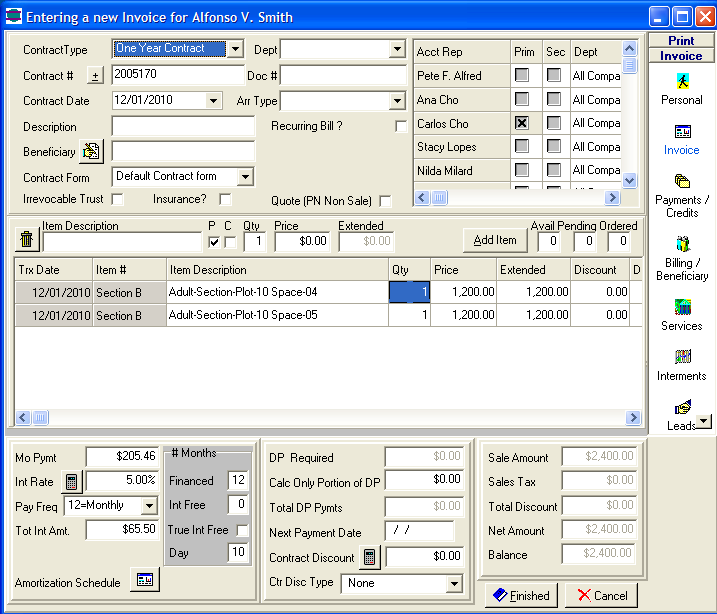
Itemized Details saves to a list
● Type a partial Description or an Item Code to bring up
a list of products and services to pick from
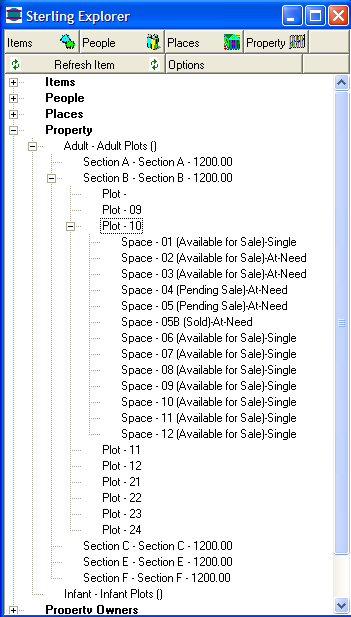
● If the sale is for Property, open the Sterling
Explorer, find the property space and drag it to the Contract. It will
land in the Item Description field where you can change the description if you
want.
● As Items are added, they will show up in the list
● Double click the item on the list to edit or
delete the entry.
● Invoice Terms and Running totals are grouped at the
bottom of the screen
Calc Only Portion of DP is used for entering the total
down payment amount without entering the actual cash receipts. This field
is only used when one person (or department) enters invoices and a different
person (or department) enters down payments and cash receipts. The
Down payment is considered payment number zero, with no interest. The
amortization schedule is then based on the financed amount or balance after
down payments are considered. Whether the actual receipt is entered or
an amount is entered into the "Calc only DP" field, the amortization schedule
is calculated with that amount subtracted from the invoice amount.
Principle and interest amounts for the entire contract cycle is calculated and
stored.
- If you cannot find the property space
you are looking for, right mouse click and select "Property
(Create new Property)"
- Type in a partial Description for the
property Section you need and you will get the following screen.
Enter all the information you have, including the property
Segment descriptions.
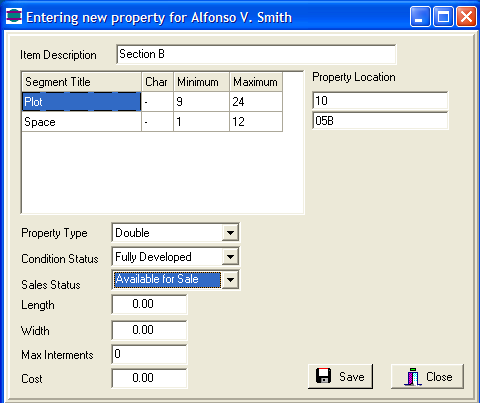
- Click Save and this new property space
will land in your Invoice Screen to edit and Save
The new property space will also show up immediately in your
Sterling Explorer
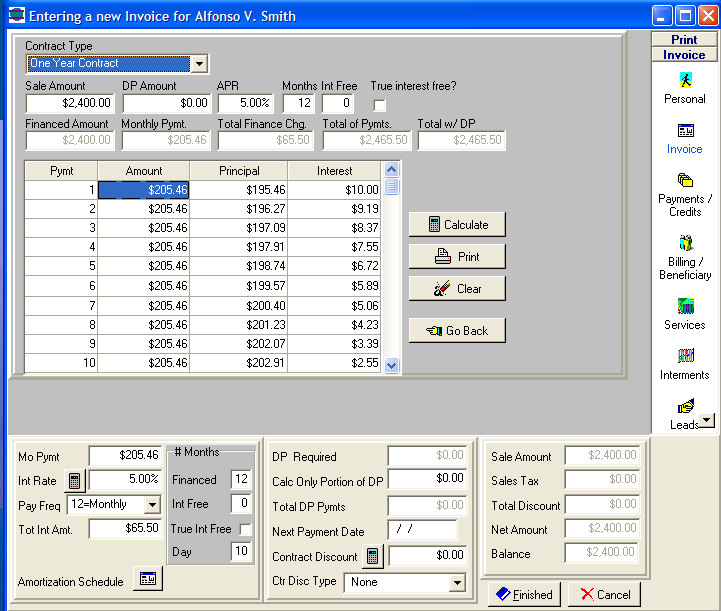
● Amortization Calculations are generated from
information stored in the "Contract Types"
● Click the button next to "Amortization Schedule" to
make changes or to see the payments and to print a payment schedule.
● This is where you can make changes, to help the
family determine what their best financing options are.
● Click the "Go Back" button or the
Invoice button on the right to return to the main
screen
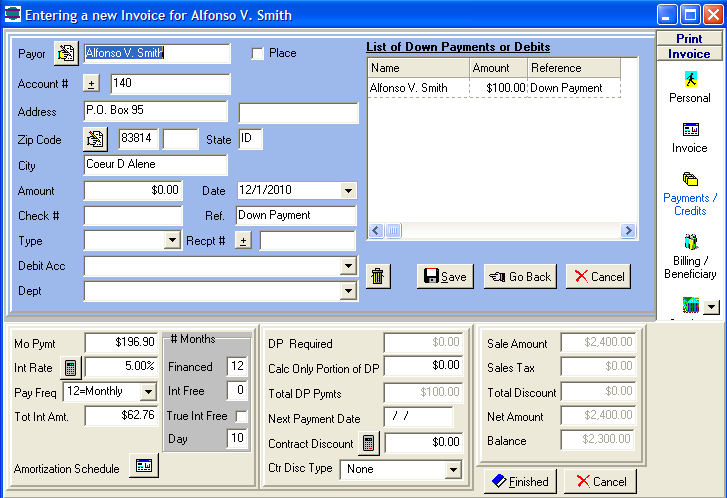
- Click the "Payments/Credits" Button to enter as
many credits as needed.
- Clicking the Add Button defaults to the Purchaser.
- Click the "Edit" button next to the name if the
Credit is for different person or Bank in the case of a Trust Reimbursement
- If there is more than one property space on the
invoice, double click the Property space you want to print a deed for and
click Save to activate that property space.
- Click the Interments Button and the
property space you are generating a deed for will show up
- Click the + next to the Deed number to
generate the next number, enter a Deed Date and click Save
- The Save Deed button will prompt you to
print the Deed
- Enter any interment information you have
and click Save
- When you are all done, click the Invoice
button to return to the main screen

 Made in USA